

TOOLBIX
How TOOLBIX works
Deutsch · English · Français · Italiano · Español · Polski · Čeština · Hrvatski · Українська · Български · Bosanski · Dansk · Ελληνικά · Eesti · Suomi · Gaeilge · Magyar · Íslenska · ქართული · Lietuvių · Latviešu · Македонски · Malti · Norsk bokmål · Nederlands · Português · Română · Slovenčina · Slovenščina · Shqip · Српски · Svenska · Türkçe · Bahasa Indonesia · Tiếng Việt · ไทย · Português (Brasil) · Español (Latinoamérica) · 日本語 · 한국어 · 简体中文 · 繁體中文
TOOLBIX in a nutshell
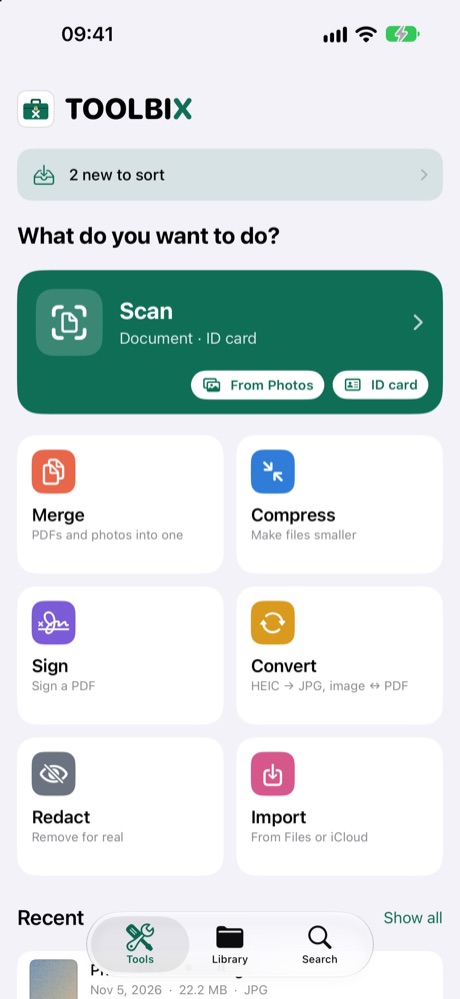
TOOLBIX is a toolbox for your paperwork: scan, compress, merge, convert, sign, redact and file. Everything happens on your iPhone or iPad – no account, no ads, no server. Try all tools free for 14 days, then unlock them once (full version, no subscription). At the bottom there are three areas: Tools, Library and Search.
Scan
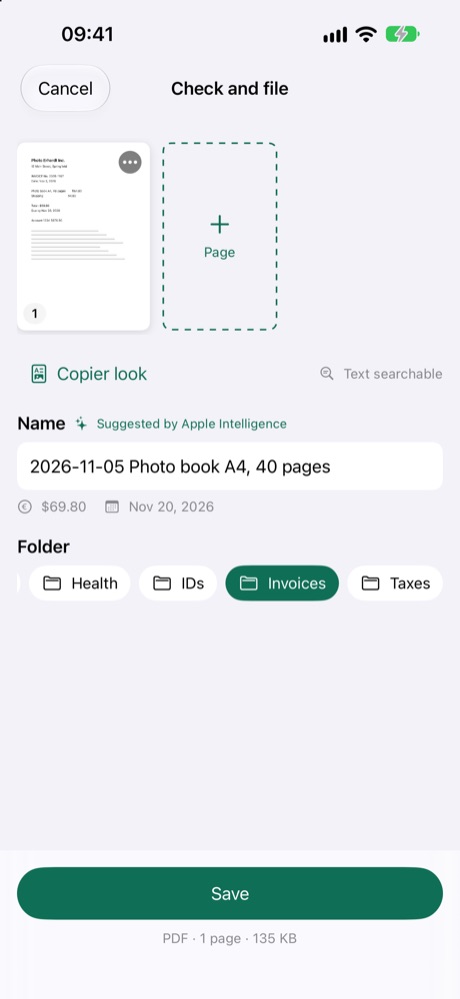
- In Tools tap Scan. The camera finds the page by itself; several pages become one PDF.
- ID card: front and back end up together on one page.
- Copier look: black and white without shadows – looks like a photocopy.
- From Photos: already took a photo of the document? Pick the photos from your library.
- Text in the scan is recognized, so you can find it later with Search.
Merge
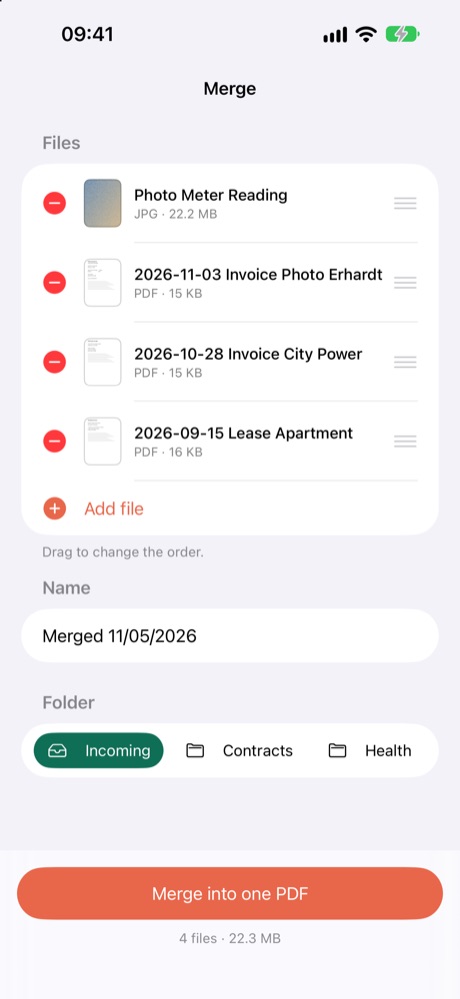
- Combine PDFs, photos and scans into one PDF.
- Drag to change the order.
Compress
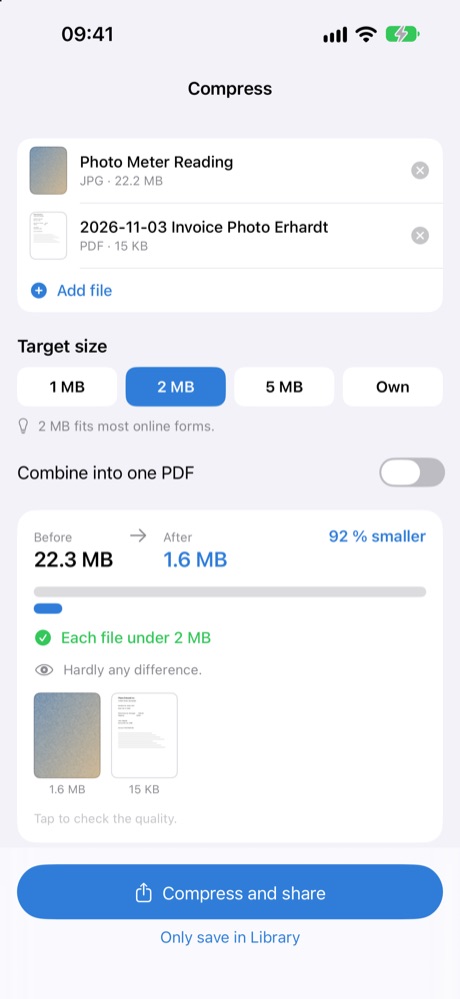
- Pick a target size: 1, 2 or 5 MB. TOOLBIX shows the size before and after.
- Handy when a portal or email only accepts small attachments.
Convert
- HEIC to JPG, images to PDF and PDF pages to individual images.
- For JPG and PDF you can choose a target size per file. Whether it can be reached depends on the document.
Sign
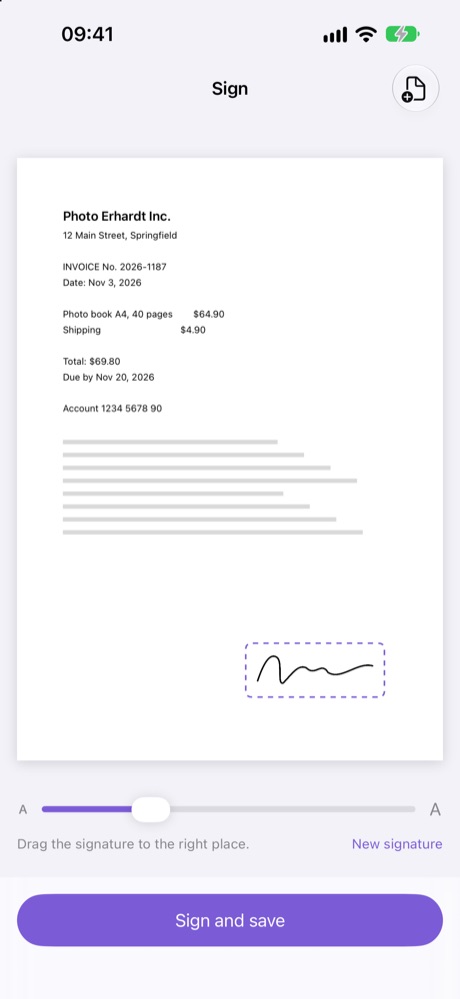
- Choose a PDF or a photo of a document and draw your signature – once, TOOLBIX remembers it.
- Drag the signature to the right place, adjust the size and, if you like, add place and date below.
- A new copy is saved; the original stays.
- Note: this is a simple electronic signature (drawn by hand), not a qualified electronic signature. If the recipient requires a special form, please ask first.
Redact
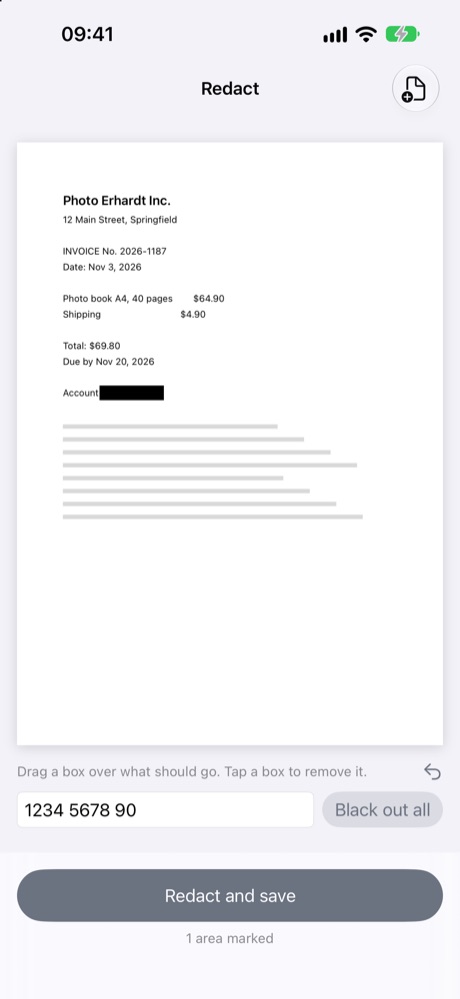
- Choose a PDF or photo and drag a box over what should go. Tap a box to remove it again.
- Black out all removes a word everywhere in the document (works for documents with recognized text).
- The marked parts are really removed in a new copy, not just covered. The original stays.
- Please look at the result before sharing.
Ready-made profiles
- For email, For authorities or Application: add files, drag to reorder, tap Prepare.
- TOOLBIX merges everything into one PDF, brings it to the right size and gives it a sensible name.
- Share the result right away; it is also saved in your library.
Deadlines and payment
- On a letter or invoice tap Deadlines and payment.
- TOOLBIX suggests deadlines (“payable by …”) – add them to your calendar with one tap. Dates marked “≈” are calculated from the letter date. Always check them.
- GiroCode: TOOLBIX prepares the payment details as a code image. Many banking apps can read such an image (“photo transfer”, “scan code”) and fill in the transfer. Your bank carries out the transfer – please check all details before sending.
Library and folders

- In Library you create your own folders, e.g. invoices, contracts, taxes.
- Touch and hold a file to rename, share, move to … or delete it.
- Lock a folder: a folder can be locked with Face ID, Touch ID or your device passcode. When you switch apps, TOOLBIX is covered until you unlock again.
- Incoming: in Mail, Photos or WhatsApp tap Share › TOOLBIX – the file lands in Incoming.
- Regular folders also appear in the Files app under “On My iPhone › TOOLBIX”, so you can copy files to your own drive or NAS.
Search

- Search finds file names and words inside your scans.
TOOLBIX Plus (optional subscription)
For family or a small team: shared folders and “Please sign”. Your own library stays on your device – only what you put into a shared folder is stored on our server in Germany.
Create a group
- In Library tap Shared, then Sign in with Apple. You only need an account for Plus.
- Choose a plan: Plus 5 (up to 5 people including you, 50 GB) or Plus 10 (up to 10 people, 100 GB), monthly or yearly. Then tap Create group.
Invite people
- Under Members tap Create invitation and Share invitation link, e.g. via WhatsApp or email.
- The link and code are valid for 7 days. The invited person opens the link, or enters the code under Got an invitation? and taps Join.
- Members need no subscription or purchase of their own: while they are in an active Plus group, all tools are unlocked for them.
- If your group is full, you can switch to Plus 10.
Shared folders
- Create a New shared folder – everyone in the group sees it.
- Add file, open files, Save to my library.
- Deleted files go to the trash first and can be restored there.
“Please sign”
- In a shared folder, on a file tap Ask to sign …, choose who should sign, add a note if you like, tap Send.
- The other person sees the request under Shared › Please sign, signs and sends it back – or taps Decline.
- The signed document is then in the shared folder and in the library of the person who signed.
Subscription
- The subscription renews automatically. Cancel or change it in your Apple ID settings (Settings › your name › Subscriptions), at least 24 hours before the end of the period.
- After the subscription ends, shared files stay available for 90 days and are then deleted. Save what you need to your own library before then.
- Terms: mindmaniax.de/toolbix/terms
Leave the group, sign out, delete your account
- At the bottom of Shared: Leave group, Sign out or Delete account.
- Delete account removes your Plus account, your group and its shared files from the server. Your own library on the device stays. A running subscription must also be cancelled in your Apple ID settings.
Frequently asked questions
- Do I need an account? No. You only sign in with Apple for TOOLBIX Plus.
- Where are my files? On your device. Only files in shared Plus folders are stored on our server in Germany. No ads, no tracking.
- What happens after the 14 days? Nothing is charged. Your files stay and you can still view and share them. The tools then need the full version (buy once).
- I have a new iPhone. In TOOLBIX tap Unlock TOOLBIX › Restore purchases – with the same Apple ID. Your files move with your iPhone backup (iCloud or Mac).
- Is my signature legally valid? It is a simple electronic signature. That is enough for many everyday cases; not where a qualified signature or paper form is required.
- Is redacting safe? The marked parts are really removed in the copy. Still, look at the result before sharing.
- The AI suggests names – does anyone see that? No. On iPhones with Apple Intelligence (iOS 26 or later) this happens on the device. TOOLBIX works just the same without AI.
- Questions or problems? Write to us – the address is in the imprint on mindmaniax.de.
Any questions? Write to us: support@mindmaniax.de